
You just build the report
Excel is one of six reporting applications with included QQube examples. Use the QQube Excel Add-In to drag and drop the fields you need, then format, calculate, chart, and analyze the report with familiar Excel tools.
- Comprehensive reporting models organized around QuickBooks business subjects
- Drag-and-drop Excel Add-In with recognizable business fields
- Reusable workbooks that refresh as your QuickBooks data changes
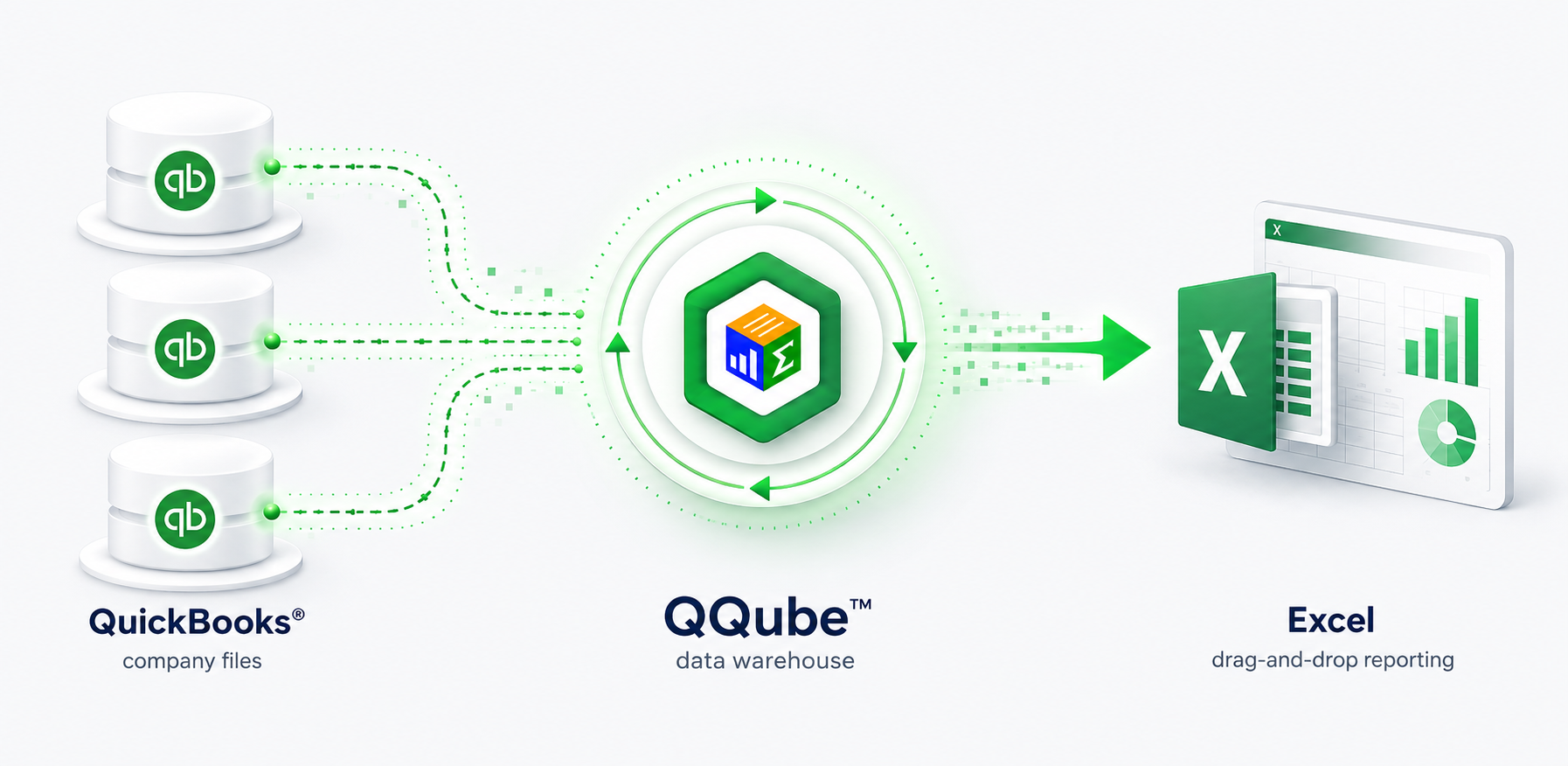
Start with a working Excel report
Included examples give you a practical starting point for your own workbook. This Job Cost example brings together information otherwise spread across five separate QuickBooks reports.
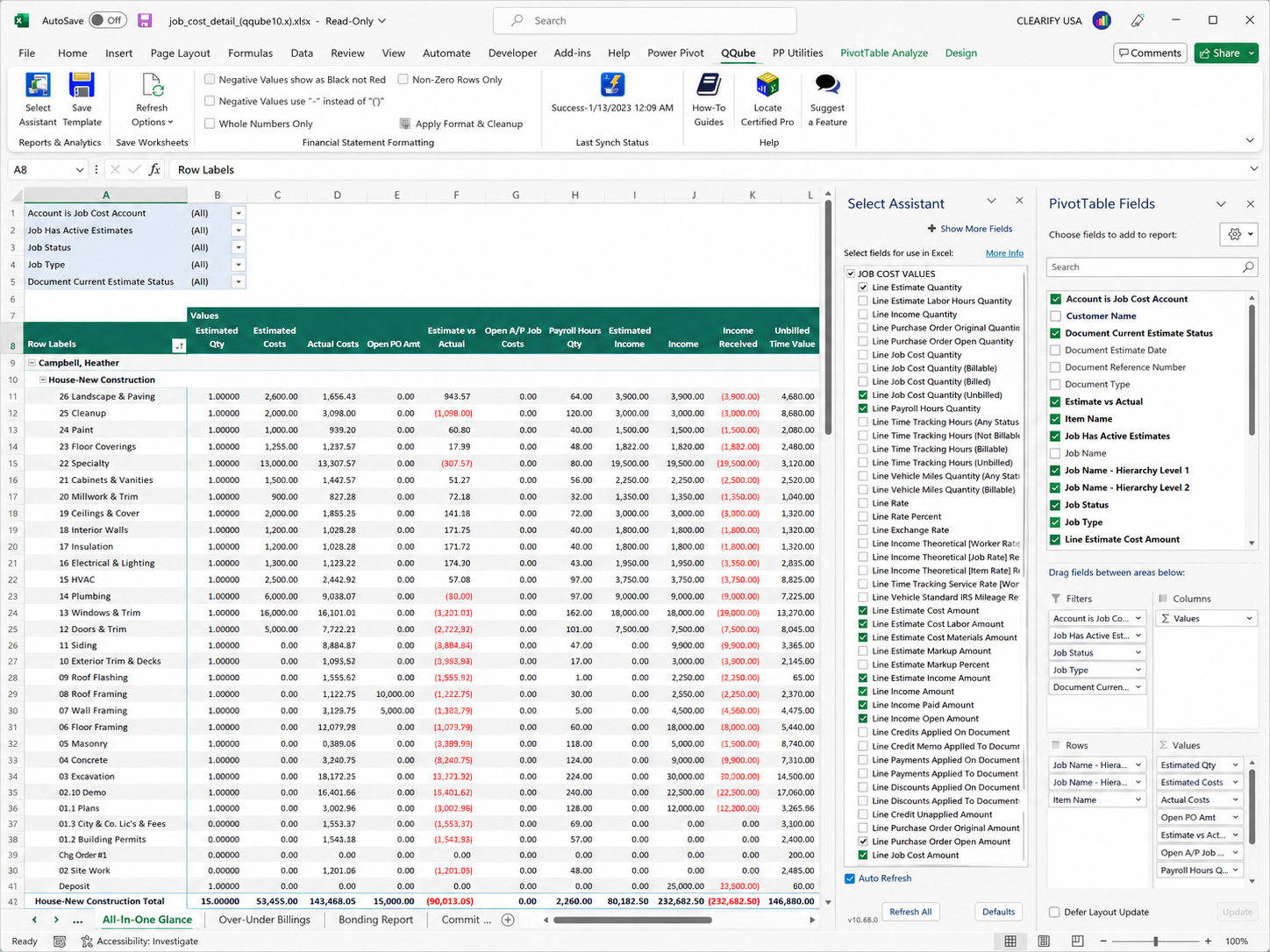
A customizable Excel report built on the comprehensive QQube Job Cost reporting model.
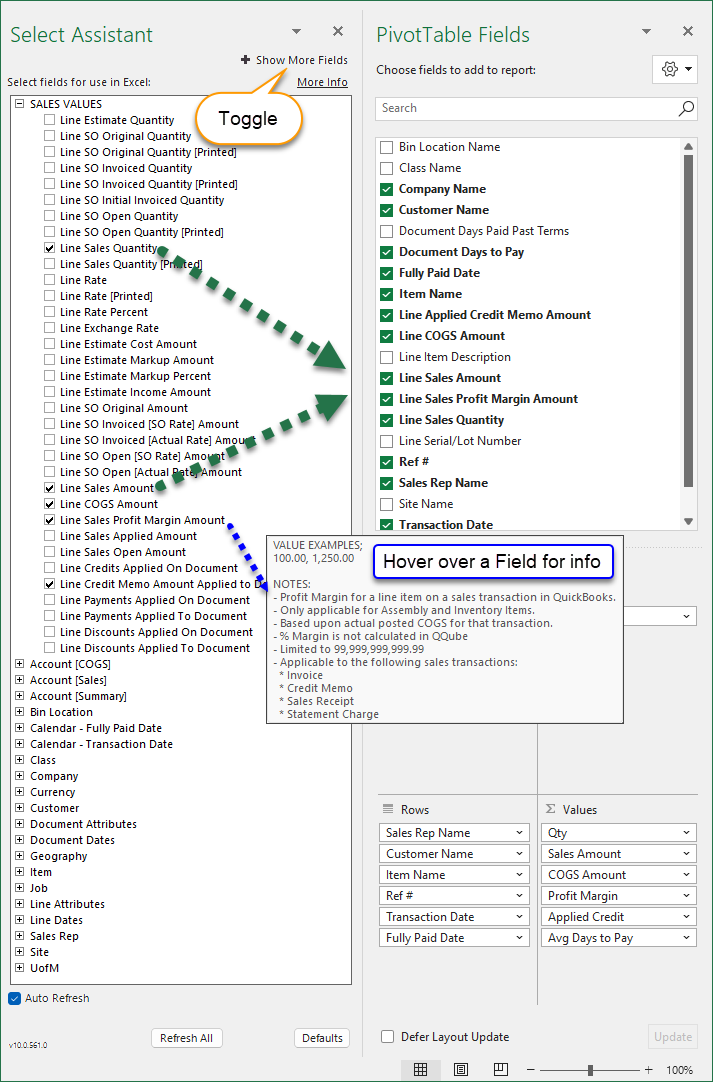
Drag and drop the fields you need
The QQube Excel Add-In lets you select recognizable business fields and place them directly into Excel. You work with the information you need instead of tables, joins, or a data dictionary.
- Place fields into an Excel table or PivotTable
- Use Excel formulas, charts, formatting, and other workbook content
- Save the workbook and refresh the QQube data without rebuilding the report
QQube prepares what a raw connector leaves to you
A connector extracts QuickBooks data. QQube organizes and prepares it for reporting.
Comprehensive reporting models
Each model is organized around a reporting subject and designed to provide the QuickBooks information available for that subject.
Ready-to-use calculations
Calculated fields and reporting logic are already included where applicable, so you do not have to recreate the accounting calculations in Excel.
Prepared financial statements
Standard-period financial statement models include prepared account structures and measures for consistent Excel reporting.
Refreshable workbooks
Save your workbook, reopen it later, and refresh the QQube data without rebuilding the report design.
Start building in Excel
Connect QuickBooks, synchronize the reporting model you need, and open an included Excel example or build your own with the QQube Excel Add-In.